XE for your browser
Your XE wallet, one click away in the toolbar. When a site asks you to pay or sign in, you see all of it first.
Free for Chrome, Edge, Brave and Firefox. Not in the browser stores yet, so you add it by hand.


A payment, start to finish
- 01
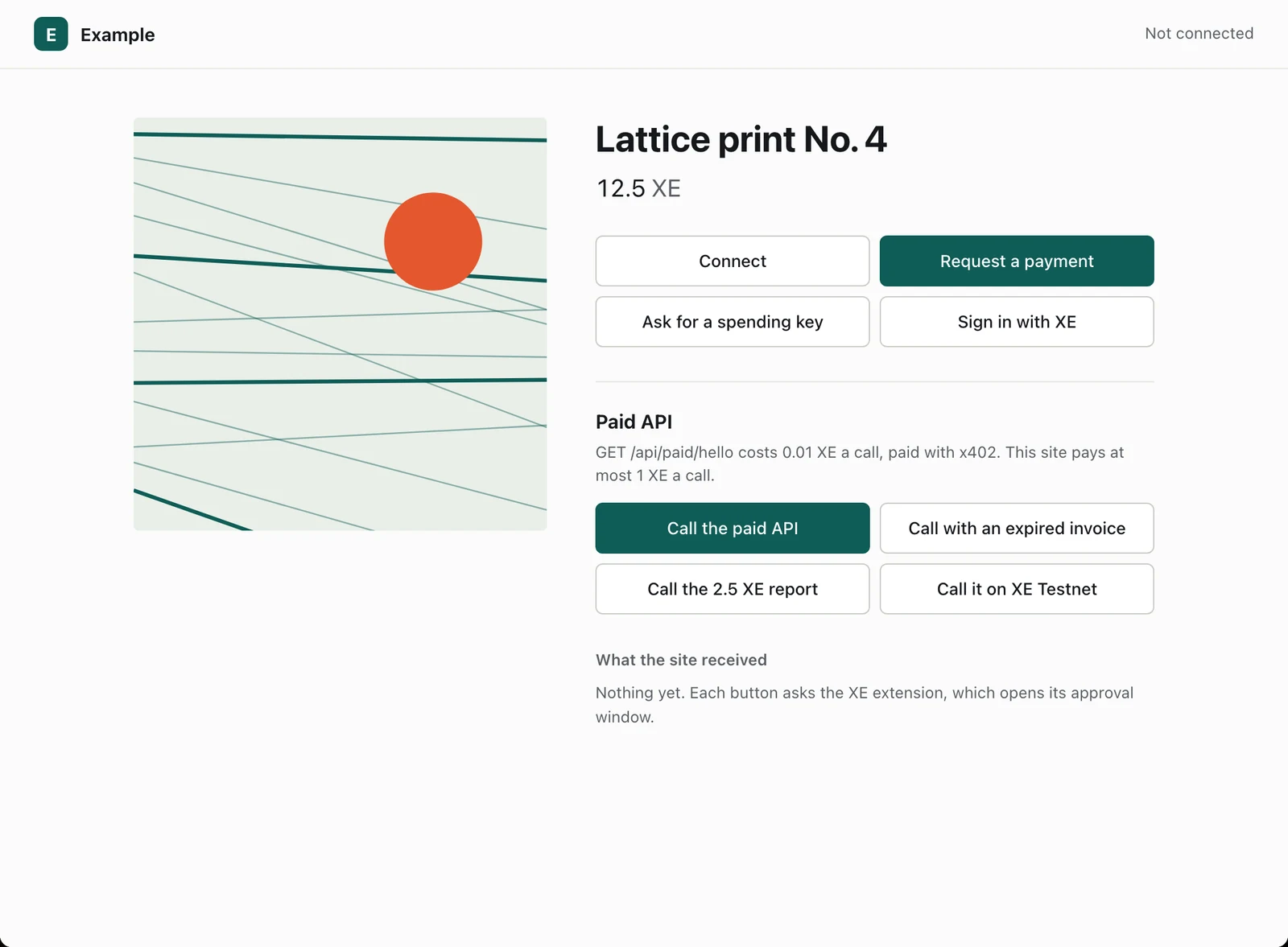
A site asks you to pay
You click Pay on a site. It can ask your wallet, but it can’t take anything.
- 02
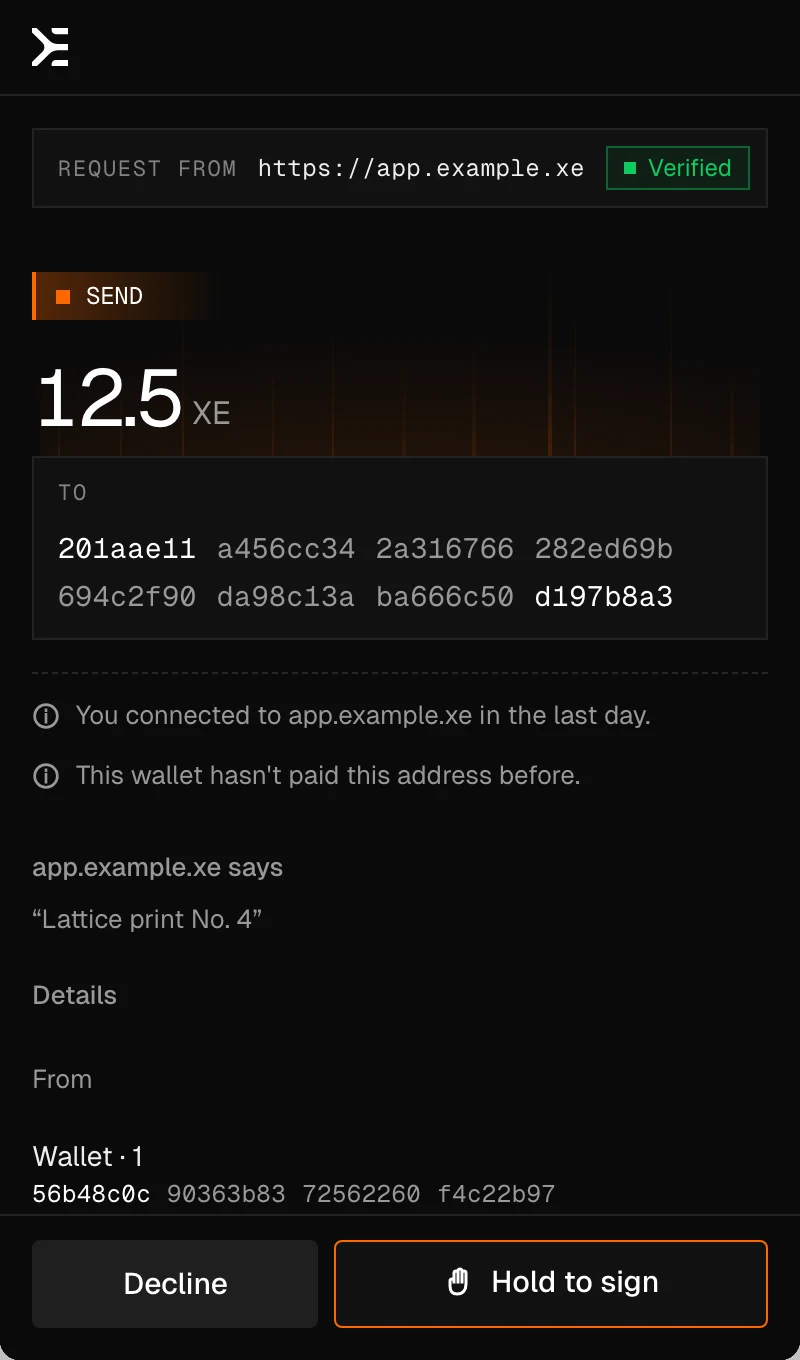
Your wallet shows everything
Who’s asking, how much, and the full address, in the wallet’s own window.
- 03
You hold to sign
Nothing is sent until you press and hold. Not sure? Decline.

You decide what each site gets
- 01
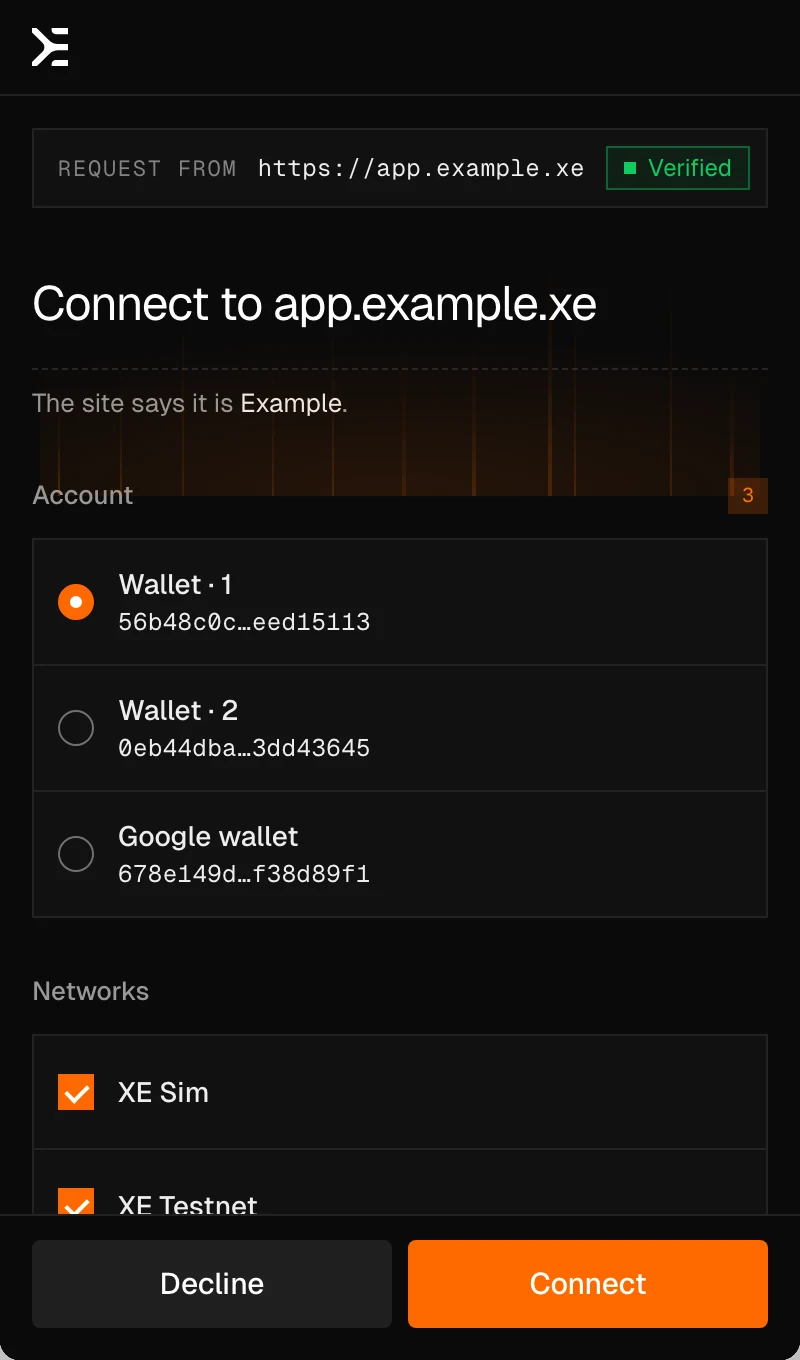
Sites see only what you share
Pick the account a site may see. Disconnect it whenever you like.
- 02
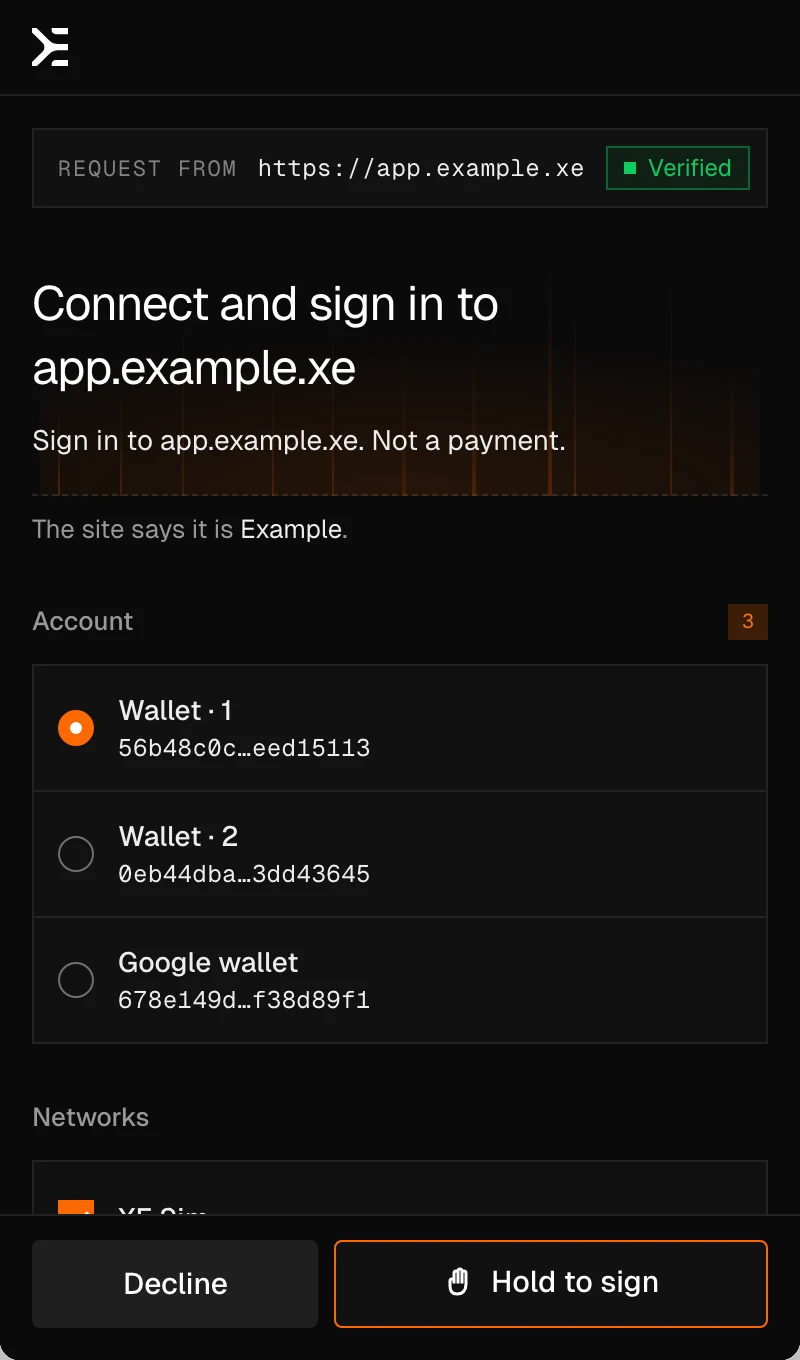
Sign in without a password
Sign in to a site with your wallet. It says clearly that it isn’t a payment.
- 03
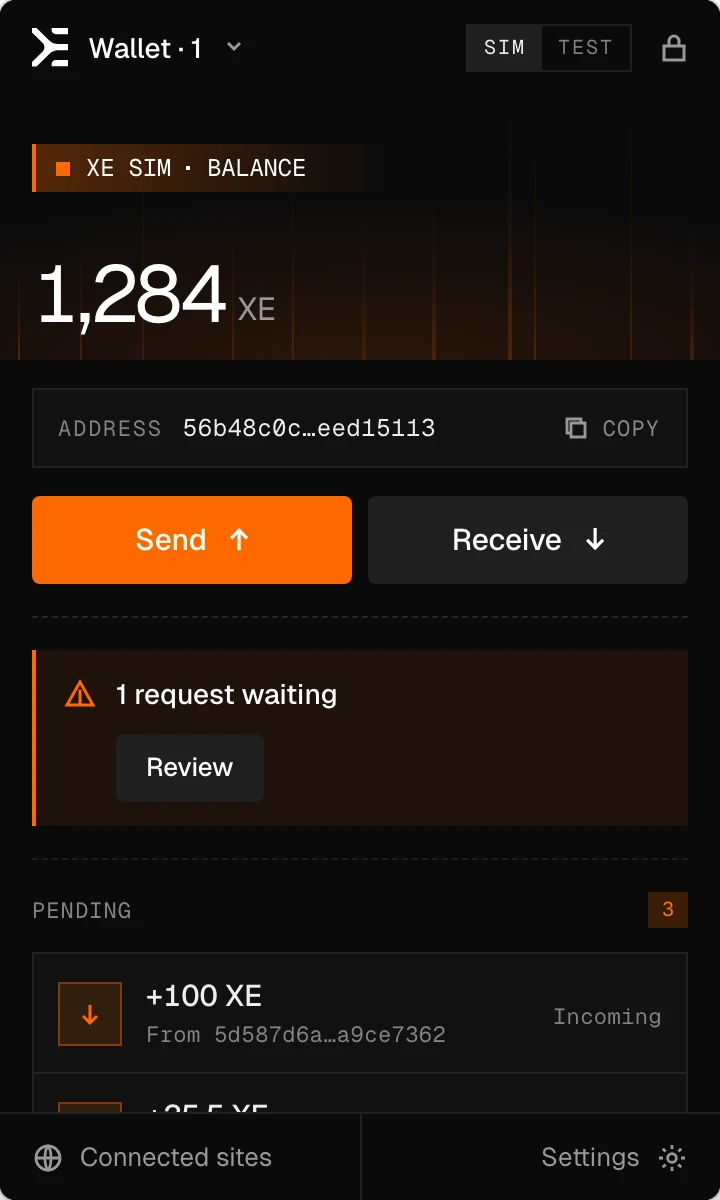
Requests wait for you
So do payments you haven’t collected yet.
- 04
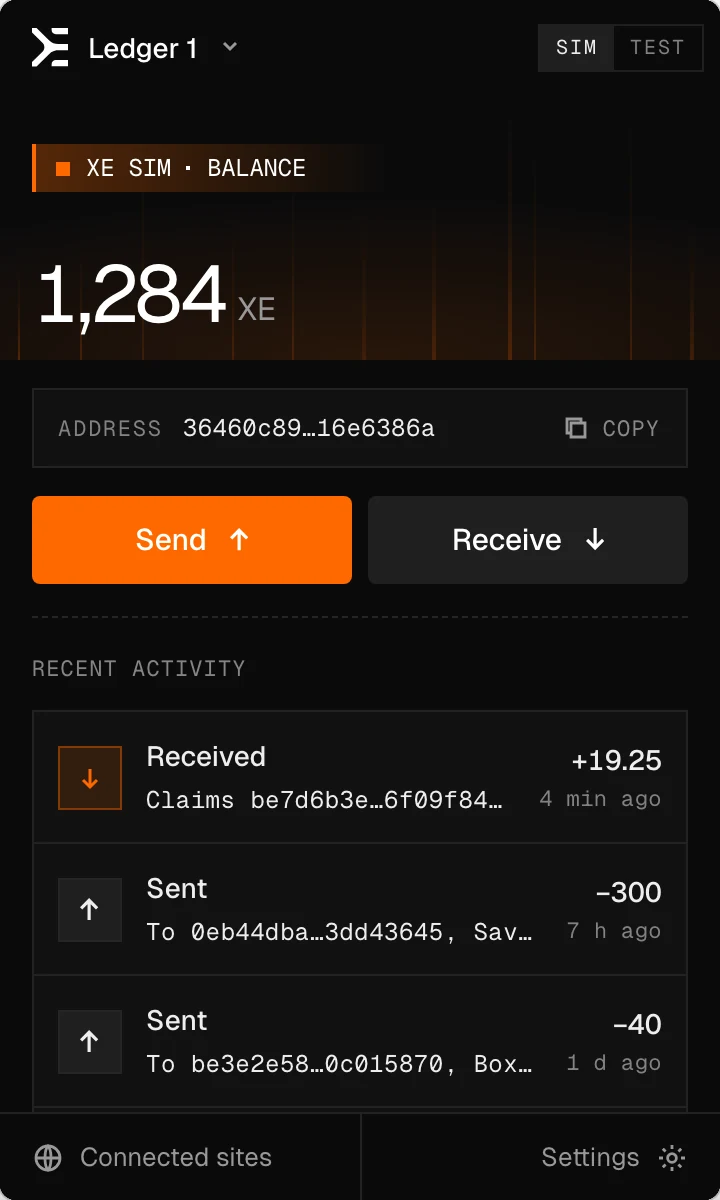
Sign with a Ledger
Keep your key on the device. The extension shows the request; the Ledger signs.


Your keys stay with you
- On your computer onlyYour recovery phrase is encrypted with your passphrase. No server keeps a copy.
- Locks itselfAfter 15 minutes away, or when your computer locks. You choose the timing.
- Lookalikes get flaggedIt warns you when a site’s address imitates XE or a site you’ve used, and when a payee’s address imitates one you’ve paid.
- No trackingNo analytics. It only talks to the XE network and the services you choose.
Install the extension
It isn’t in the browser stores yet, so you add it by hand. Pick your browser and follow the steps.
- Version
- 0.1.7, built 2026-10-19
- Next
- 0.2.1, built and not published yet
- Chrome, Edge, Brave
- Chrome 122 or newer
- Firefox
- 128 or newer, on a computer
Only download the XE extension from extension.xe.marketized.io.
- 01Check the file
In the folder you saved it to, run this. It must print the code below; if not, delete the file.
Commandshasum -a 256 xe-extension-0.1.7-chrome.zipb7854dff3027bc3125890019ecc0ce3a68a2d0e4ad152de2f09706455bc85ed7 - 02Unzip it into a folder you’ll keep
The browser runs the extension from that folder.
- 03Turn on Developer mode
Open the extensions page and switch on Developer mode (top right; on the left in Edge).
Commandchrome://extensions - 04Choose Load unpacked
Pick the folder with manifest.json in it. The extension’s ID should be:
hbnjpnjdlippnpefggdhmobnkabanhep - 05Pin XE
Click the puzzle icon in the toolbar, pin XE, and open your wallet.
Before you start
- Updates are by hand for nowFor a new version, replace the folder’s files and reload XE on the extensions page.
- Write your recovery phrase downRemoving the extension removes the wallet in it.
Check the download
A matching code means you have the exact file this site published.
- Every version’s files and their SHA-256For scripts.Address
https://extension.xe.marketized.io/releases/manifest.json
Questions
Is it free?
Yes. Sending XE has no fees either.
Can a site take money without asking?
No. Every payment opens the wallet’s own window, and nothing is sent until you hold to sign.
Is it in the Chrome Web Store?
Not yet. Until then, you install it by hand with the steps above.
What if I forget my passphrase?
Unlock with a passkey if you set one. If not, reinstall and restore your wallet from its recovery phrase.
Can I try it first?
Yes. The same screens run in a browser tab with example data: extension-demo.xe.marketized.io/demo.
XE apps run on XE Sim and the XE testnet. Test XE has no value. Chrome is a trademark of Google LLC, Firefox of the Mozilla Foundation, Edge of Microsoft, Brave of Brave Software, Ledger of Ledger SAS. This site is not run or endorsed by any of them.
Add XE to your browser
Free for Chrome, Edge, Brave and Firefox. Or try every screen first, in a browser tab.