XE in a browser tab
Open a page and you have a wallet. Send and receive XE, and keep your key in your browser or on a Ledger.
Free. Nothing to install.


Check before you pay
Before anything leaves your wallet, you see the whole address, the amount and what you’ll have left. Then you hold to sign.


Give your AI agents a budget
Let an agent like Claude Code pay for things, up to a limit per payment and per day that you set. See what it has spent, and end its access whenever you like. Paying on its own works on XE Sim; on the XE testnet an agent can look and ask.


Choose where your key lives
Your recovery phrase stays in your browser, encrypted. No server keeps a copy. Or keep the key on a device you already own.
- 01
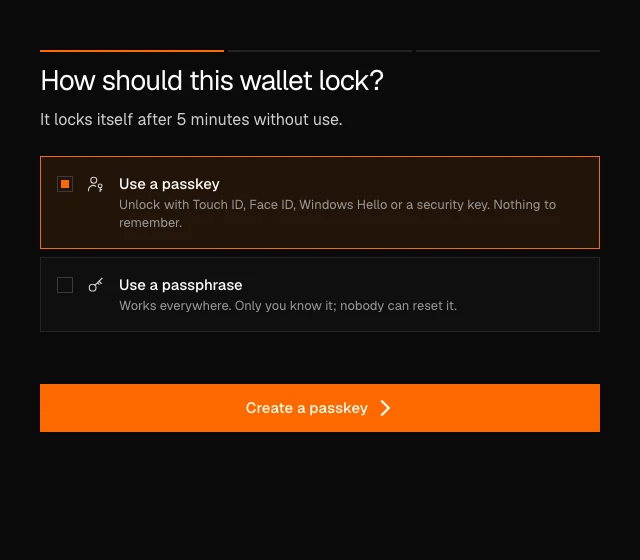
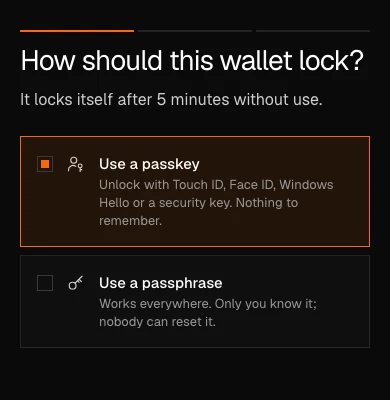
A recovery phrase, locked with a passkey
Create a wallet in seconds. Unlock it with Face ID, Touch ID or Windows Hello, or a passphrase.
- 02
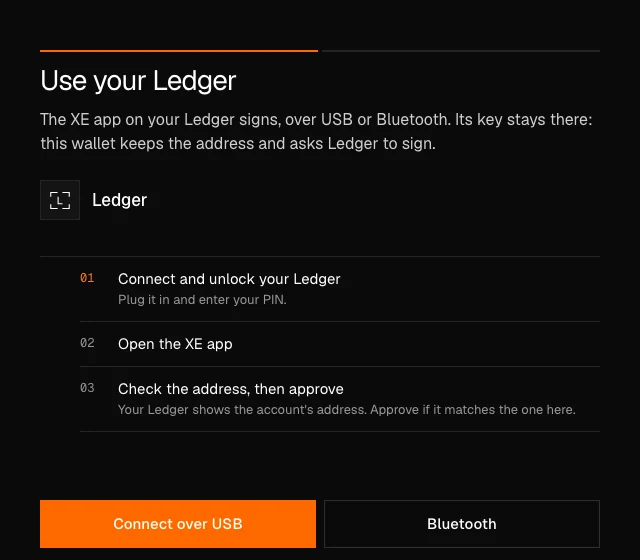
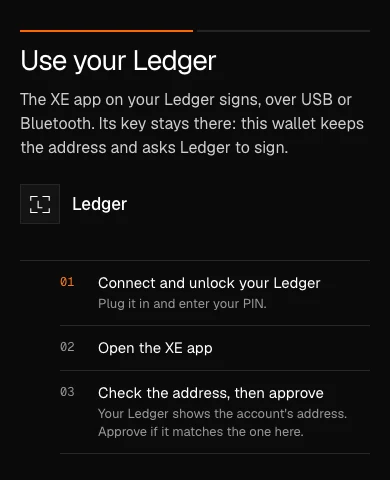
Your Ledger signs
Connect over USB, or Bluetooth on a Stax or Flex, in Chrome or Edge. The Ledger shows each payment before you approve it.
- 03
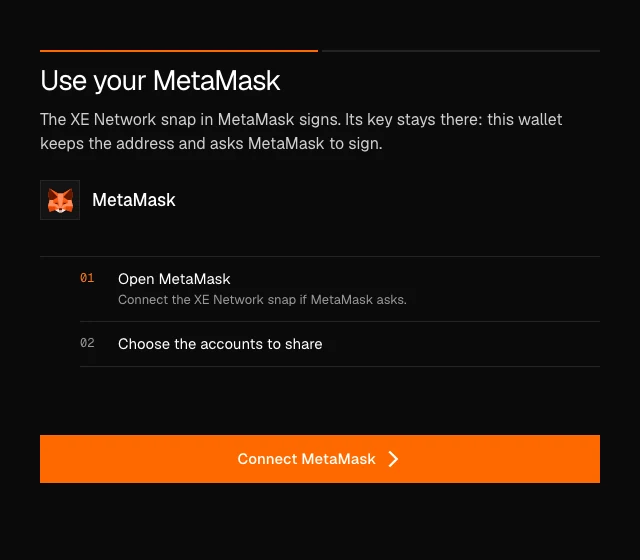
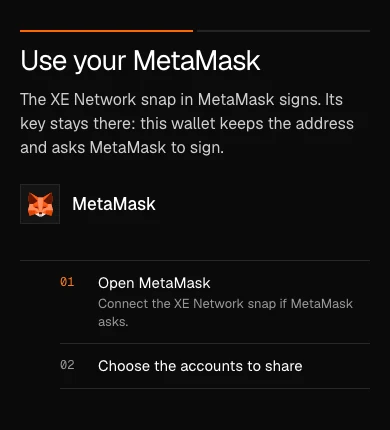
MetaMask Flask signs
For developers: connect MetaMask Flask with the XE Snap.
- 04
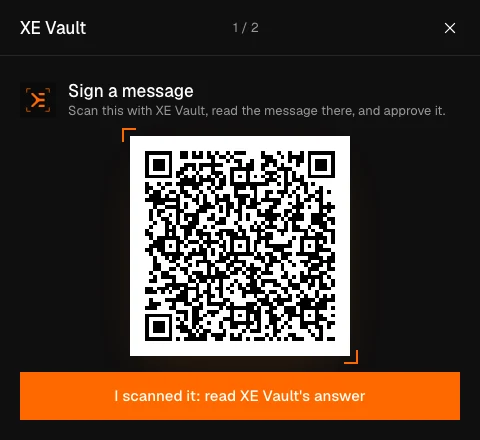
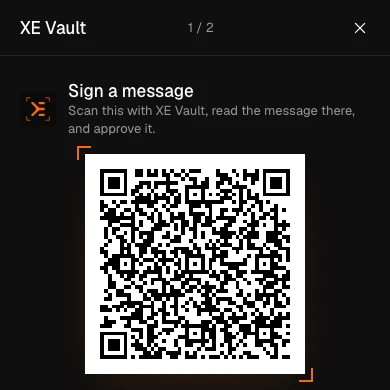
An offline phone signs
The key lives on a spare phone that never goes online. You sign by scanning a code with XE Vault.
- 05
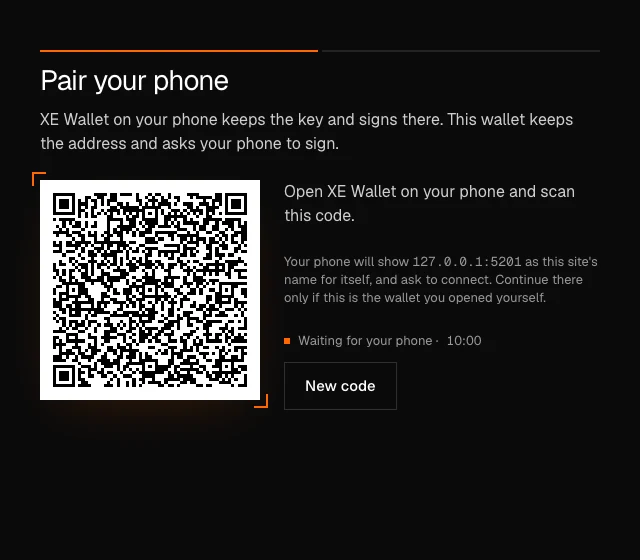
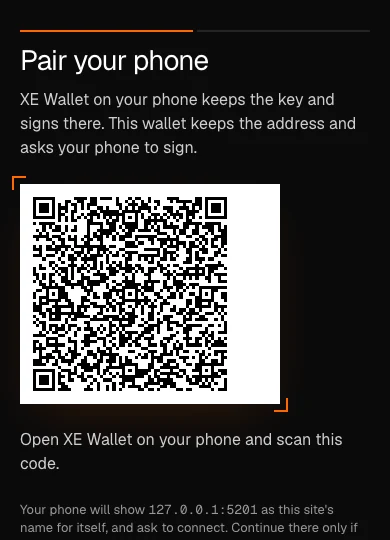
Your phone signs
Scan a code with XE Wallet on your phone once. Approve each payment there.


Questions
Do I need to install anything?
No. It’s a web page. To use XE on other sites, add the XE extension.
Can sites see my wallet?
Only the accounts you pick, and only after you say yes. You can disconnect a site anytime.
Can I vote in the XE DAO?
Yes. Read proposals and vote from the wallet’s Governance tab.
Is it free?
Yes. Sending XE has no fees either.
Where is my key?
Encrypted in your browser, or on the device you chose. No server has a copy.
What if I lose access?
Enter your recovery phrase here or in the XE extension, and the same accounts come back.
What if I clear my browser data?
The wallet is stored in this browser. If its data is cleared (Safari clears sites you haven’t used for 7 days), only your recovery phrase brings it back.
XE apps run on XE Sim and the XE testnet. Test XE has no value. Ledger is a trademark of Ledger SAS, MetaMask of Consensys. This site is not run or endorsed by either.
Ready when you are
No download, no sign-up. Open the page and create a wallet, or bring the one you have.